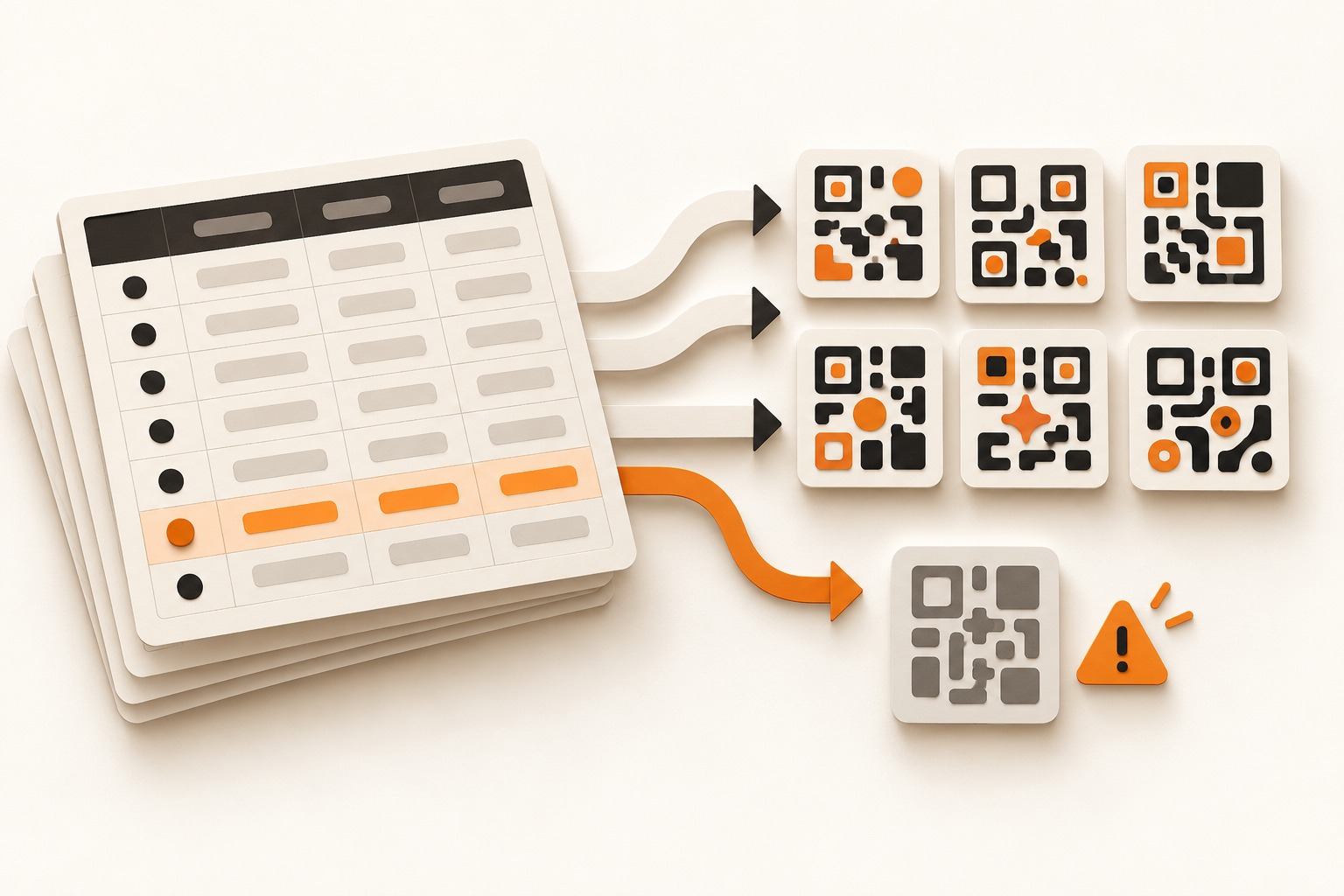
Moving 180 product URLs into QR codes one at a time is slow and makes mismatches easy. qr3.app accepts CSV and XLSX files for this job: one table row creates one code. The useful part is not merely uploading a spreadsheet. If you separate input preparation, result checking and follow-up, you can still tell which code belongs to which product afterward.
Start with a small, unambiguous table
In the dashboard, open Codes → Import and download the CSV or XLSX template. For an ordinary URL code, enter a valid HTTP or HTTPS address in url for each row. You can leave type blank; it defaults to url. Add a clear title, ideally an internal item identifier together with the product name. tags and notes are optional. Tags in the import file may be separated with commas or semicolons.
A short preparation table could look like this:
| type | title | url | tags | notes |
|---|---|---|---|---|
| url | Model A17 – product page | https://example.com/products/a17 | model-a17;series-a | Approved 2026-10 |
| url | Model A18 – product page | https://example.com/products/a18 | model-a18;series-a | Approved 2026-10 |
These addresses represent a fictional catalogue. Before importing, check carefully that each target URL matches its item identifier. A syntactically valid URL can still point to the wrong variant. Keep your own mapping of item identifier, target URL and, later, the qr3 short code.
The import also supports wifi and vcard, but these types need additional columns: wifi_ssid for Wi-Fi, or vcard_first_name or vcard_last_name for a contact card. The usual URL codes from the template are created as dynamic codes. You can change their destination later while keeping the printed code. Wi-Fi and vCard codes are not dynamic URL redirects. If you plan to mix types, check that every row supplies the fields its type requires.
Check limits before uploading
An import file may contain at most 1,000 data rows and be at most 5 MB. Your plan's dynamic-code limit also applies. When the remaining capacity is reached, qr3 reports the affected rows as errors instead of creating more dynamic codes. Divide larger lists into manageable batches and check the available capacity first.
Try a small group of real, non-sensitive entries in your workspace before processing the whole list. This is a real import, not a preview: successfully processed codes exist afterward. Check their titles, types and destinations, then include only the still-missing rows in the main batch. That keeps the mapping traceable.
Read partial results correctly
After Start import, the dashboard shows the numbers of imported and skipped rows. If there are errors, it previews the row number and reason. The downloadable error report contains the affected original columns and the error text. You can use it to correct a malformed URL or a missing required Wi-Fi or vCard field.
The next upload needs care: do not resend the original full file after a partial success. The current importer generates a new ID and short code for every valid row. It does not match rows against existing codes by title or destination URL. Therefore, correct and re-import only the rows that were skipped. You may remove the report's row and error columns or leave them as extra columns. What matters is that the file contains only the previously failed records.
Then compare your source list with the codes actually created. Each planned item identifier should have exactly the intended code. Manually checking a few records near the beginning, middle and end can reveal spreadsheet shifts that an “imported” total alone cannot.
Distribute only after checking the mapping
Download approved codes for their intended use. qr3 offers PNG, SVG, PDF and EPS per code; the vector formats work well for scalable print artwork. Before a large print run, test the actual code on the intended material and check the destination without signing in. The import result confirms that a record was created. It cannot confirm that every valid URL leads to the right product variant.
Start with a small batch, keep the import result and work through errors using only the error report. This turns a quick spreadsheet upload into a verifiable mapping between product, QR code and destination.
Sources
Product behaviour and documentation checked on 23 October 2026. The model numbers and destination URLs are illustrative examples.